Archived entries for

Creating a simple HTTP proxy using PHP

Cross domain policy files, or rather a lack of them, are the bane of Flash and Flex developers’ lives. Whether it’s the Twitter API, data from Yahoo! Finance or one of any number of other data sources, the moment your SWF makes it to the web you’re faced with the same problem: Security Error!

The solution is to create a simple proxy on your server that can load the data for you and pass it to your application. If you’re using PHP, then this is about as simple as it gets:

<?=file_get_contents($_REQUEST["url"])?>

That’s it. Just paste that into a text file, save it as proxy.php and upload it to your server. You can then access any data you like simply by passing it a URL. Best of all, it works with both GET and POST, for example:

http://www.mydomain.com/proxy.php?url=http://blog.mesmotronic.com/index.php/feed

Happy proxy-ing!

Mesmotronic Multiuser Server 2.0.5 update available

Mesmotronic Multiuser Server 2
The latest update to Mesmotronic Multiuser Server 2 includes a number of technical updates to resolve theorectical, but never experienced, issues with Windows 7 and adds timestamps and the ability to remember your username/password in the admin console.

You can download the update here

ConnectedVNC adds audio!

ConnectedVNC in use

The ConnectedVNC plug-in for DivX Connected now includes ConCast, so you can hear your PC too!

By installing a SHOUTcast or Icecast server alongside DivX Connected, you can now listen to your PC while using it remotely on your TV, enabling you to enjoy applications like Spotify and iTunes from the comfort of your sofa!

Existing users will need to download the latest plug-in to upgrade.

For more information about streaming audio from your PC to your set-top box, please refer to the the ConCast plug-in page.

Please note: audio is optional and some users may experience a 1-2 second audio lag.

Download ConnectedVNC from DivX Connected plug-in library
Take a look at the DivX Connected set-top box

ConCast plug-in for DivX Connected

What is it?

ConCast is a SHOUTcast, Icecast and Podcast player for DivX Connected, capable of playing most AAC and MP3 streams.

Originally an experiment in adding audio to ConnectedVNC, the ConCast plug-in is primarily designed to enable users to stream sound from their PC to their set-top box using one of the many free SHOUTcast/Icecast servers, for example if you want to listen to Spotify or iTunes on your TV.

To stream audio from your PC

One of the easiest ways to listen to audio from your PC using ConCast is to set your default recording device to Stereo Mix, which you’ll need to enable if you’re using Windows 7 or Vista, and install edcast (to encode the sound) and Icecast2 (to broadcast it).

There are plenty of online tutorials showing how to setup edcast and Icecast2, and more ConCast specific information will be posted here soon.

Download & find out more

Filters and Radio Mode added to UK Radio Player for DivX Connected

With a growing selection of radio stations available via the UK Radio Player, you can now filter by name using the number buttons of your DivX Connected remote control.

There’s also a new Radio Mode available via the DELETE button for anyone wanting background music without the glow of their TV.

New features will be added automatically for existing users, so there’s no need to manually upgrade or re-install the plug-in.

Don’t have the UK Radio Player?

Filters and Radio Mode added to UK Radio Player for DivX Connected

UK Radio Player for DivX Connected

Introducing the UK Radio Player for DivX Connected

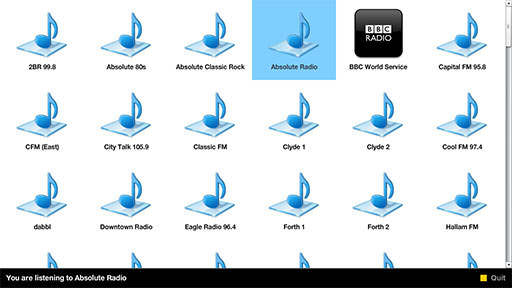
The UK Radio Player enables you to listen to a wide range of radio stations through your DivX Connected set-top box, including Absolute, Capital, Heart, Kiss and Magic to name but a few.

New stations and features will be added automatically, so open the plug-in regularly to see what’s new!

Can’t find your favourite station?

If your favourite station isn’t listed, and it’s available online as an an MP3 or AAC/AAC+ stream, let us know by adding a comment to this post and we’ll see what we can do!

Wherever possible, please post the URL of the feed itself, rather than a link to a website or M3U/PLS playlist.

Download & Find out more

Introducing Mesmotronic ImProve online image approval

A number of our clients were complaining that they were spending literally hours of their time every day creating contact sheets in Photoshop for their clients to review and approve. Add to that the time spent sending emails back and forth listing the images they did or didn’t want to use and that’s a lot of time and money down the drain.

But now there’s a solution: Mesmotronic ImProve.

Mesmotronic ImProve is an online image approval service for photographers and other creative industry professionals.

By simplifying the process of creating and sharing contact sheets with your clients, Mesmotronic ImProve speeds up the proofing process, saving you both time and money.

So, whether you’re a wedding photographer who needs to know which shots to include in an album, a designer wanting to confirm which images to include in a web or poster campaign, or any other creative professional who wants to save time on the proofing process, Mesmotronic Improve is designed to make your life easier.

With Mesmotronic ImProve it really is as easy as Upload, Approve, Review.

Click here to find out more about Mesmotronic ImProve and create a FREE account

ConnectedVNC 0.95 now available!

The latest release of ConnectedVNC adds additional remote control functionality:

  • Tap ARROWS to move slowly
  • Press and hold ARROWS to move fast
  • Press DOT to pick-up (start drag)
  • Press DOT again to drop (end drag)

While dragging, e.g. moving an icon or window, your mouse cursor will become semi-transparent to indicate that you are in drag mode.

Known issue: You should not try to drag the DivX Connected server window as the server may freeze.

Download ConnectedVNC from DivX Connected plug-in library
Take a look at the DivX Connected set-top box

Getting the most from ConnectedVNC

Changing Windows' screen resolution can improve your PC-on-TV experience

One of the biggest drawbacks of using your PC on your TV is that things that look great when you’re sat 30-40cm (12-16″) from your monitor, often look rather small when you’re sat several meters away on the sofa.

The quickest way to improve the situation is to change the screen resolution used by Windows to something more similar to your television to make everything larger and remove any black borders you may see around the picture. The best resolution will ultimately depend on the size of your TV, but we recommend trying:

  • 800 x 600 for SD TVs
  • 1280 x 720 for HD TVs (or 1366 x 768 if that’s not available)

To change the screen resolution in Windows XP, right-click anywhere on the Desktop to bring up the Display control panel and select Properties then the Settings tab. In Windows 7/Vista, right-click on the Desktop and select Screen resolution.

With the Display control panel still open, you will also have the opportunity to increase the size of the text and icons used by Windows. In Windows XP, select the Appearance tab and change the Font Size option at the bottom of the dialogue. In Windows 7/Vista, click “Make text and other items smaller or larger”.

If you are using ConnectedVNC to browse the web, zoom controls are available by selecting View > Zoom from the menu in Firefox, or by clicking on the magnifying glass in the bottom-right corner of Internet Explorer.

Download ConnectedVNC from DivX Connected plug-in library
Take a look at the DivX Connected set-top box

ConnectedVNC now available for DivX Connected

ConnectedVNC is a free VNC client that allows you to control your Windows PC from your television using your DivX Connected set-top-box.

What’s it for?

ConnectedVNC allows you use your PC from your TV, so you can do things like check your email and browse the web without having to leave the comfort of your arm chair.

Requirements

To use the ConnectedVNC plug-in, you need to install a VNC server on the same PC as the DivX Connected server software; we recommend UltraVNC.

Once installed, open Admin Properties by right-clicking on the system tray icon, create a password (middle-left), tick the box next to “Allow Loopback Connections” (top-left) and click OK.

That’s it! You’re ready to use ConnectedVNC.

Getting Started

To use ConnectedVNC, simply navigate to the Plug-ins menu, or press the orange button on your remote control, and select ConnectedVNC.

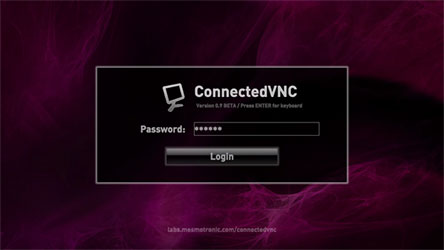
On the first screen, highlight the password box and press ENTER on your remote control to bring up the on-screen keyboard and enter your password, then navigate to DONE and press enter. Now, simply press down on your remote control to highlight the Login button and press ENTER.

If you have entered the correct password, the desktop of your PC should appear.

Remote Control

  • ARROWS = Move the mouse up/down/left/right
  • ENTER = Left mouse click
  • MENU = Right mouse click
  • PAGE UP/DOWN = Scroll up/down
  • DELETE = Backspace key
  • NUMBERS = Number keys (0-9)

For additional keyboard input, we recommend using Windows’ on-screen keyboard:

Error Messages

After you click the Login button, you might see a “Connection Error” or “Invalid Password” error; a connection error usually occurs because the VNC server is not running or is being blocked by a firewall.

Either way, simply press BACK to try again.

Download & Find Out More

ConnectedVNC contains code from the FVNC project.


Copyright © 2004–2009. All rights reserved.

RSS Feed. This blog is proudly powered by Wordpress and uses Modern Clix, a theme by Rodrigo Galindez.