Essential Eclipse plug-ins for Flash Builder 4 and Burrito

With the recent relase of Adobe Flash Builder 4, we thought we’d flag up the update URLs for a few of our favourite Eclipse plug-ins to save you having to hunt around for them.

To install plug-ins:

  1. Copy the appropriate URL to your clipboard
  2. In Flash Builder, select Install New Software… from the Help menu
  3. Click Add, paste URL in the Location field and click OK
  4. Select the plug-ins to install and click Finish

If you’ve spotted anything we’ve missed, add a comment orĀ  tweet it to @mesmotronic.

Eclipse.org

This URL contains links to most of the plug-ins hosted on Eclipse.org, allowing you to add functionality like ANT, JDT (Java Development Tools) and PDT (PHP Development Tools). You’ll also need to add this URL to Flash Builder to enable you to install other plug-ins, like soapUI:

http://download.eclipse.org/releases/galileo/

Subclipse (SVN)

If you’re a regular user of version control, and you should be, the subclipse plug-in is essential:

http://subclipse.tigris.org/update_1.6.x

soapUI

For anyone who uses Web Services, soapUI offers a great way to view and test your services:

http://www.soapui.org/eclipse/update/site.xml

Android SDK

Now that you can develop application using AIR for Android, it could be argued that ADT (Android Developer Tools) isn’t necessarily essential, but if you’re looking to develop mobile apps for anything other than the latest handsets it’s definitely worth a look:

https://dl-ssl.google.com/android/eclipse/

TODO/FIXME

For anyone who makes regular use of the Tasks panel in FlashDevelop or Eclipse’s Java profile, this is a must.

You can download the plug-in here (requires manual installation).



Creating a simple HTTP proxy using PHP

Cross domain policy files, or rather a lack of them, are the bane of Flash and Flex developers’ lives. Whether it’s the Twitter API, data from Yahoo! Finance or one of any number of other data sources, the moment your SWF makes it to the web you’re faced with the same problem: Security Error!

The solution is to create a simple proxy on your server that can load the data for you and pass it to your application. If you’re using PHP, then this is about as simple as it gets:

// Too simple! (see comment below)
<?=file_get_contents($_REQUEST['url'])?>
<?php
$url = $_REQUEST['url'];
if (preg_match('/\b(https?|ftp):\/\/*/', $url) !== 1) die;
echo (file_get_contents($url));
?>

The preg_match ensures that the requested URL is valid and offers basic protection against anyone trying to maliciously access files on your server.

That’s it. Just paste that into a text file, save it as proxy.php and upload it to your server. You can then access any data you like simply by passing it a URL. Best of all, it works with both GET and POST, for example:

http://www.mydomain.com/proxy.php?url=http://blog.mesmotronic.com/index.php/feed

Happy proxy-ing!

ConnectedVNC adds audio!

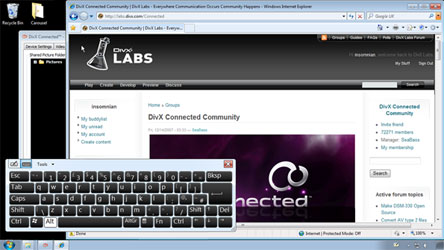
ConnectedVNC in use

The ConnectedVNC plug-in for DivX Connected now includes ConCast, so you can hear your PC too!

By installing a SHOUTcast or Icecast server alongside DivX Connected, you can now listen to your PC while using it remotely on your TV, enabling you to enjoy applications like Spotify and iTunes from the comfort of your sofa!

Existing users will need to download the latest plug-in to upgrade.

For more information about streaming audio from your PC to your set-top box, please refer to the the ConCast plug-in page.

Please note: audio is optional and some users may experience a 1-2 second audio lag.

Download ConnectedVNC from DivX Connected plug-in library
Take a look at the DivX Connected set-top box

ConCast plug-in for DivX Connected

What is it?

ConCast is a SHOUTcast, Icecast and Podcast player for DivX Connected, capable of playing most AAC and MP3 streams.

Originally an experiment in adding audio to ConnectedVNC, the ConCast plug-in is primarily designed to enable users to stream sound from their PC to their set-top box using one of the many free SHOUTcast/Icecast servers, for example if you want to listen to Spotify or iTunes on your TV.

To stream audio from your PC

One of the easiest ways to listen to audio from your PC using ConCast is to set your default recording device to Stereo Mix, which you’ll need to enable if you’re using Windows 7 or Vista, and install edcast (to encode the sound) and Icecast2 (to broadcast it).

There are plenty of online tutorials showing how to setup edcast and Icecast2, and more ConCast specific information will be posted here soon.

Download & find out more